Analyze Message Popup
Purpose
Use the analyze message popup to drill into a specific error or warning directly from a chart or list widget.
It combines historical analysis, help based on linked instructions, and the ability to ignore messages (if permitted). Scrap widgets have their own display controls; they do not offer this error/warning action popup.
Steps
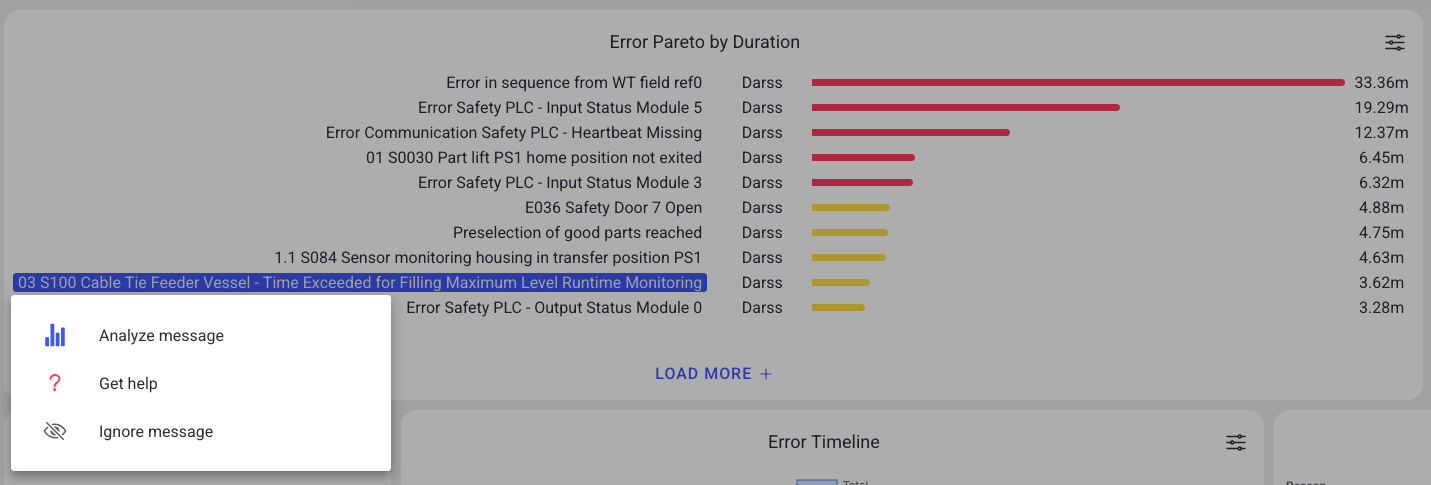
- In a dashboard widget (Pareto, history list, live alerts, timeline), select a message entry.
- Choose an action:
- Analyze message: statistical evaluation and event history
- Get help: guidance based on linked instructions (if available)
- Ignore message: ignore this message code for its machine in historical analyses (if permitted)
What users see
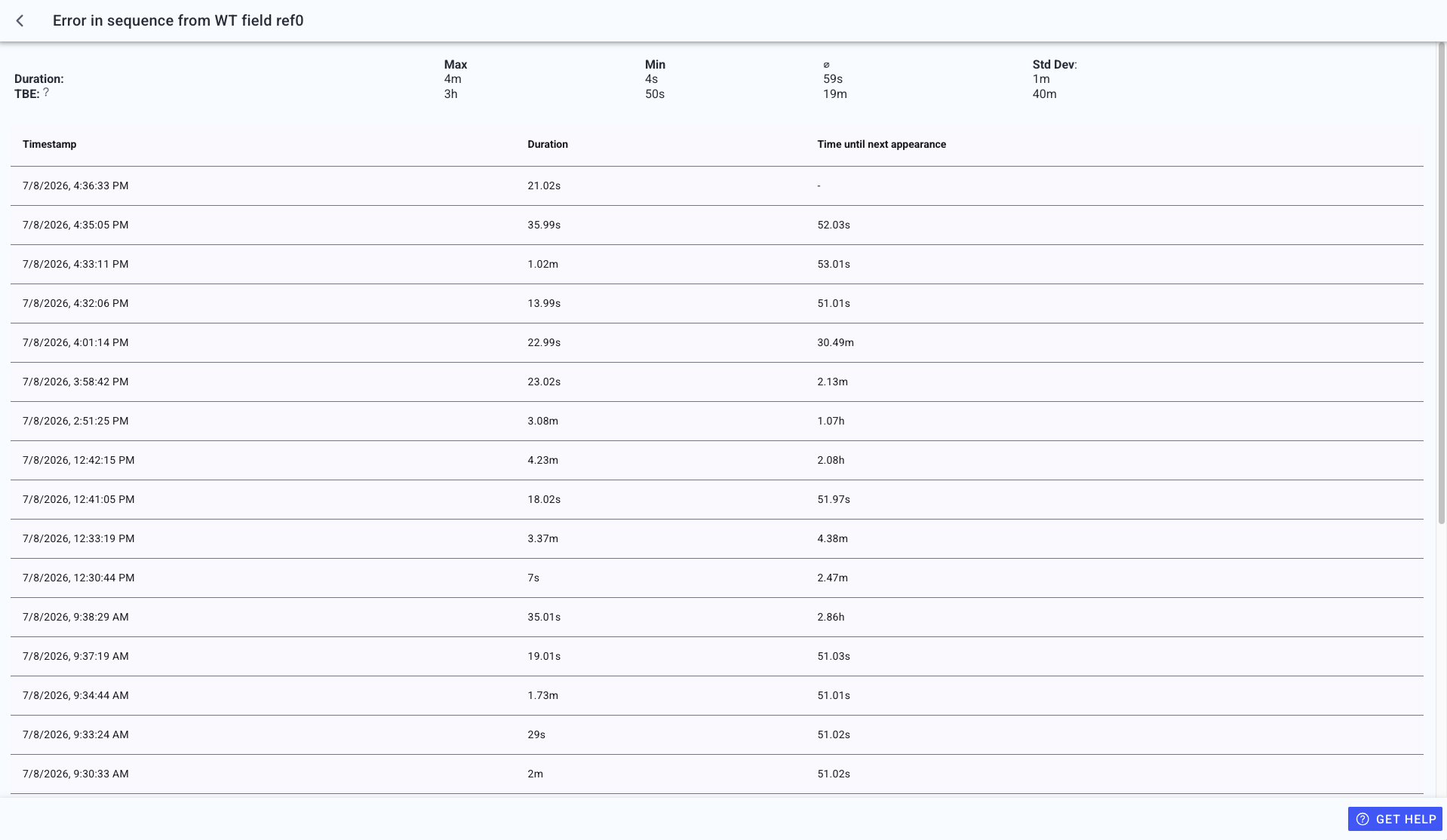
The full analysis modal shows the message details and history:
Depending on message type and permissions, you may see:
- An action selection view (analyze / get help / ignore).
- An analysis view with:
- max/min/average and standard deviation of durations
- an occurrence table with timestamps and durations
- "time until next appearance" intervals between recorded events (if available), not a prediction of the next event
- pagination controls (page size and navigation)
- A help view that can show:
- exact instruction matches
- similar instruction matches
- no match found (with an option to create new guidance if permitted)
- In timeline-based popups, tabs for Errors and Warnings and previous/next chevrons to move through neighboring items.
- An ignored-messages accordion when the selected series contains ignored entries.
Ignore message behavior
Ignoring a message sets its ignore status for the selected machine and message type/code. Standard historical error/warning report views exclude ignored messages, so the effect extends beyond the widget where you selected Ignore.
This differs from Selected messages only in a widget's configuration: that filter only changes the widget. Ignore does not acknowledge or clear an active machine alarm, and does not change machine behavior or safety functions. Do not use it to silence a safety-critical condition.
Ignored messages can be reviewed or restored via:
- Settings > Machines > [Machine] > Ignore messages
Best practices
- Use Analyze message to understand recurrence and durations before escalating.
- Use Get help for standardized corrective actions.
- Do not ignore safety-critical messages. Align with your site policy.
Troubleshooting
- Actions are missing -> Missing permission or message type does not support the action -> Ask an admin to review your role -> Escalate with a screenshot and message index
- A message disappeared from dashboards -> It was ignored -> Restore it in Settings > Machines > Ignore messages -> Escalate if you cannot access machine settings